

How to use filters
The filter bar at the top of the Catalog page is your primary interface for building queries.Step-by-step instructions:
- Click the Add Filter dropdown to see the available filtering options.
- Select a filter (e.g.,
Metadata). - Configure the filter’s operator and value (e.g.,
where metadata.weather is "rainy"). - To add another condition, click Add Filter again. By default, new filters are joined by an AND operator, meaning data must match all conditions. You can change this to OR if needed.
- Once you have a query you want to reuse, click the Save as Slice button to name and save your filter set. This creates a dynamic slice you can return to at any time.
Basic search filters
These are the foundational filters based on structured information associated with your data rows.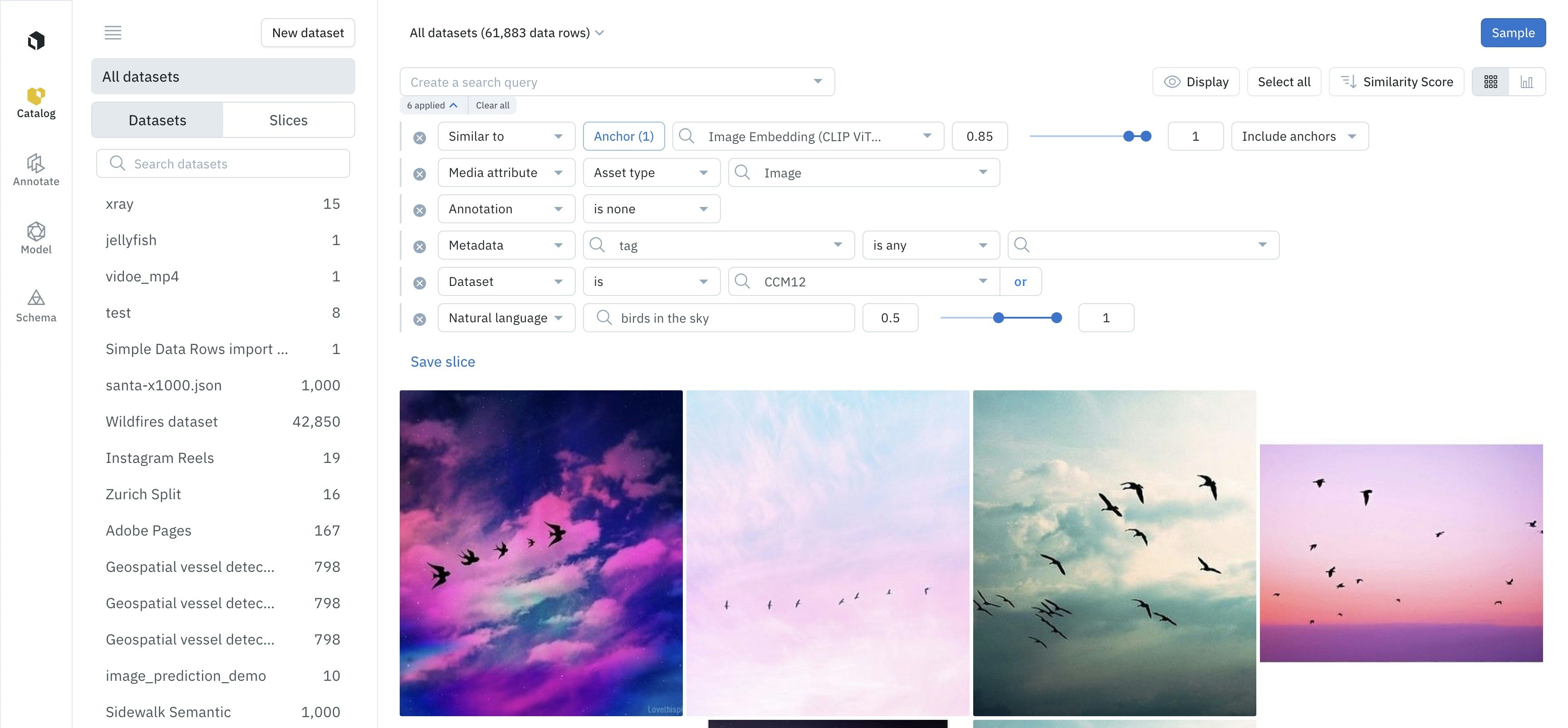
| Attribute | Description |
|---|---|
| Annotation | Find data rows with labels that contain or do not have certain counts of annotations |
| Batch | Find data rows that belong to a particular batch |
| Data row | Filter based on global key, data row ID, created at, and last activity at |
| Dataset | Find data rows that belong to a particular dataset |
| Issue | Find labelled data rows that have Issue |
| Label Actions | Find data rows that have a label(s) or haven’t been labeled yet |
| Media attributes | Find data rows based on their media type (e.g., image, video, text) or other attributes computed upon upload (e.g., video duration, height, width) |
| Metadata | Find data rows that contain a certain metadata field and/or value |
| Model | Find data rows used in Foundry |
| Model prediction | Find data rows that have Foundry prediction(s) |
| Project | Find data rows that are associated with a specific labeling project |
| Benchmark agreement | Find data rows with certain benchmark agreement metrics by label or feature |
| Consensus agreement | Find data rows with certain consensus agreement metrics by label or feature |
Advanced search techniques (AI powered)
Go beyond metadata with searches that understand the content of your data, powered by embeddings. You can also search by the following.Similarity search
- Select one or more data rows in the gallery view to act as your “anchors.”
- In the selection menu that appears, choose “Find similar data.”
- Catalog will return a new set of results, ordered by similarity to your selected anchors. This is perfect for finding more examples of a rare edge case you’ve discovered.
Natural language
Follow these steps to filter using natural language:- Go to the main search bar at the top of the page.
- Type a plain English description of what you’re looking for (e.g., “a person walking a dog on a sunny day” or “customer reviews mentioning ‘poor service’”).
- Press Enter. Catalog will translate your text into a semantic search and return the most relevant results from your dataset. You can combine this with other filters for even more specific queries.
Find text
Follow these steps to find data rows that contain a particular keyword- Click “Add Filter” and select
Find Text. - Enter the exact word or phrase you want to find within your text-based data assets (like .txt files or documents).
- This will return all data rows where the specified text is present in the content of the document itself.