

- See what your model gets right and wrong: Metrics help you identify correct predictions (true positives) and incorrect ones (false positives/negatives).
- Find where your model is uncertain: You can filter for low-confidence predictions to see where your model is struggling.
- Improve your data quality: By reviewing your model’s mistakes, you might find errors in your ground truth labels.
- Choose the best version of your model: You can compare metrics across different model runs to see which one performs best.
Automatically generated metrics
Once you upload your model’s predictions, Labelbox automatically calculates several key metrics. To get these automatic metrics, you need to have both predictions from your model and the correct answers (annotations or ground truth) in your dataset. These metrics are computed on every feature and can be sorted and filtered at the feature level.Automatic metrics are supported only for ontologies with fewer than 4,000 features. To learn more about these and other limits, see Limits.
| Metric | What it tells you |
|---|---|
| True postitive | Your model correctly predicted something that is actually there. |
| False positive | Your model predicted something that isn’t actually there. |
| True negative | Your model correctly identified that something is not there. |
| False negative | Your model missed something that is actually there. |
| Precision | Of all the things your model predicted, how many were correct? |
| Recall | Of all the things that should have been predicted, how many did your model find? |
| F1 score | A single score that balances Precision and Recall. |
| Intersection over union (IoU) | For object detection, this measures how much a predicted bounding box overlaps with the ground truth bounding box. |
The confusion matrix: A visual snapshot of performance
The confusion matrix is a powerful grid that gives you a quick, visual report card of your model’s performance. It helps you instantly see where your model is succeeding and where it’s getting confused. How to read the matrix- Correct Predictions (The Diagonal): Cells running from the top-left to the bottom-right show correct predictions (True Positives), where your model’s predicted class matched the ground truth annotation. Note: Predictions uploaded without a confidence score are automatically assigned a score of 1.
- Prediction Errors (Off-Diagonal): All other cells highlight errors, showing where the model predicted the wrong class.
None
The matrix includes a special None category to clearly identify key errors:
None category | What it means | Type of error |
|---|---|---|
Prediction with None annotation | The model made a prediction that didn’t correspond to any real annotation. | False positive |
Annotation with None prediction | A real annotation existed, but the model failed to make a prediction for it. | Negative |
- Confidence Threshold: First, it filters out any prediction with a confidence score below your selected value.
- IoU Threshold: Then, it matches the remaining predictions to annotations based on their overlap (Intersection over Union, or IoU). A successful match must have an IoU score above this threshold.
For classification models, you can still use the confusion matrix by setting the IoU threshold to
0.- 11 values of confidence thresholds: 0, 0.1, 0.2, 0.3, …, 0.7, 0.8, 0.9, 1
- 11 values of IoU thresholds: 0, 0.1, 0.2, 0.3, …, 0.7, 0.8, 0.9, 1
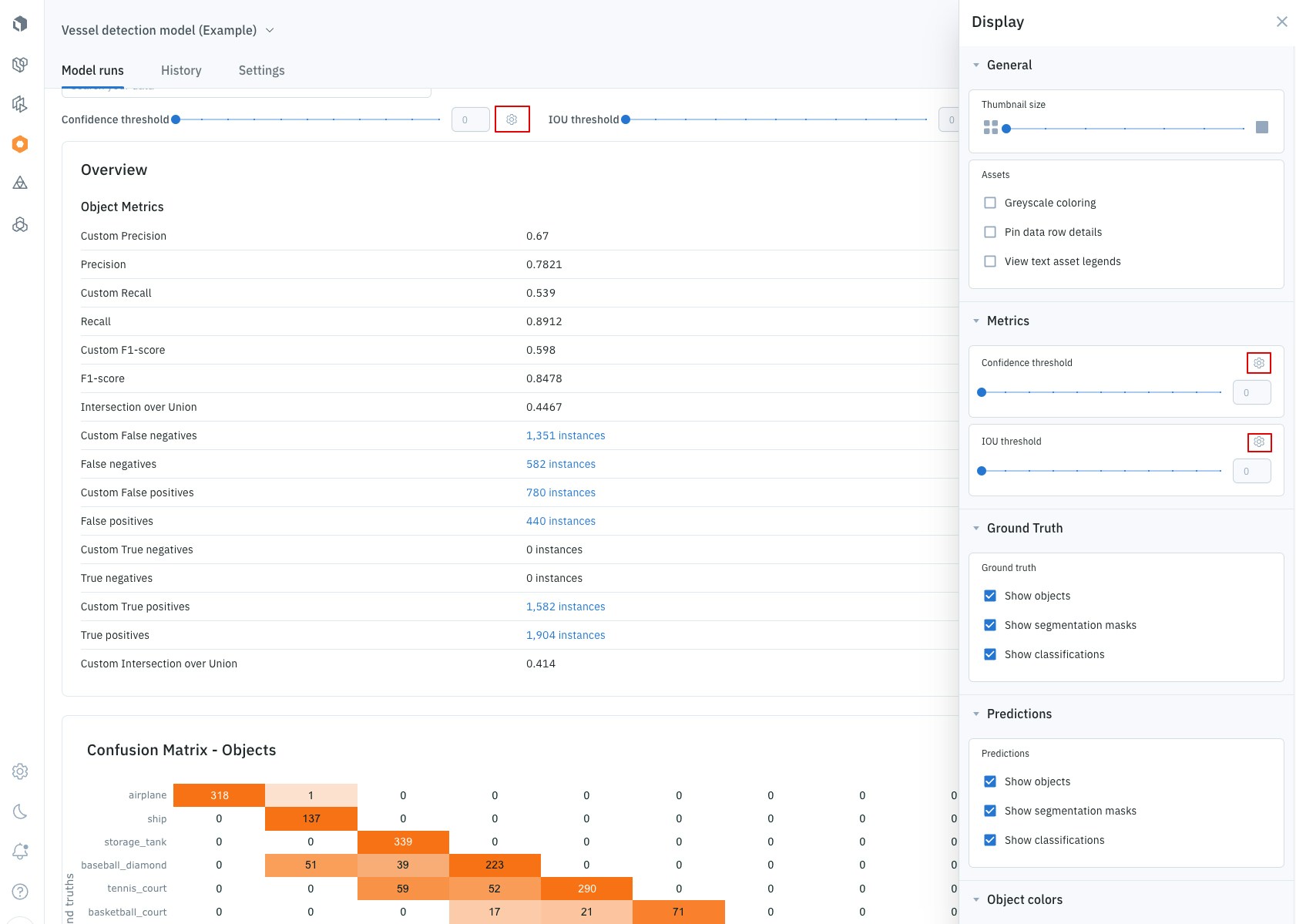
- Go to the Display panel.
- Find the metric you want to adjust (e.g., Confidence or IoU) and click the Settings icon.
- From there, you can add, remove, or edit the threshold values to create a custom range for your analysis.
The precision-recall curve: Finding the right balance
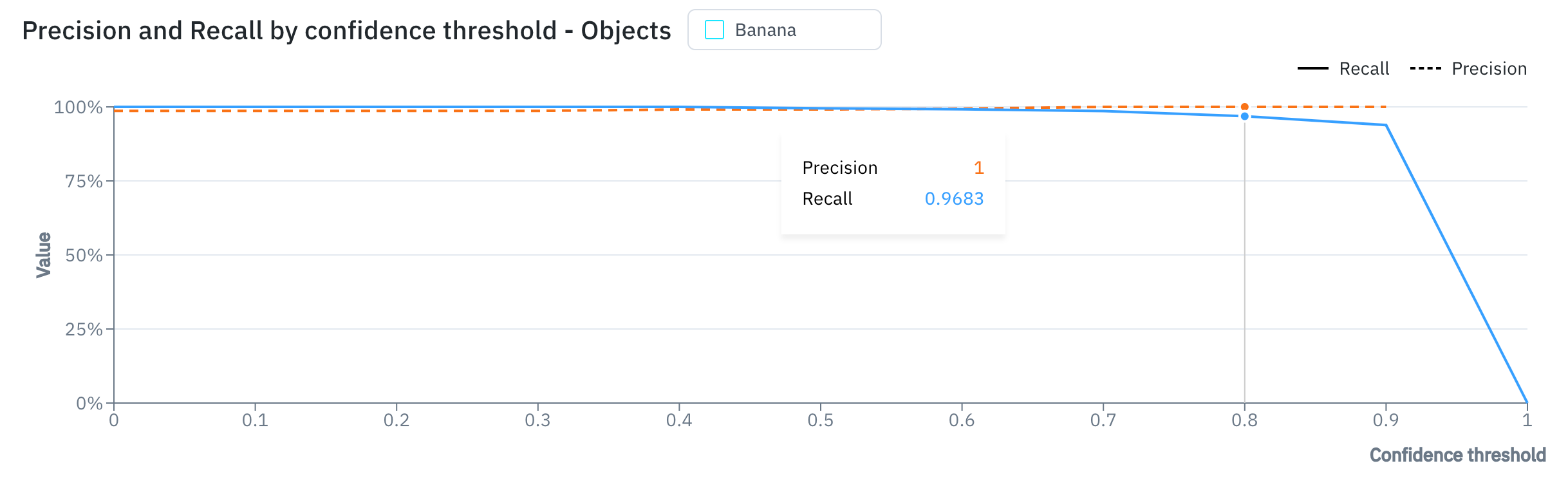
The precision-recall curve helps you decide on the best confidence threshold for your model. The confidence threshold is the minimum level of confidence your model needs to have before it makes a prediction.- A high confidence threshold will result in fewer, but more accurate, predictions (high precision, low recall).
- A low confidence threshold will result in more predictions, but also more errors (low precision, high recall).
View automatically generated model metrics
Follow these steps to view your model run metrics in the Labelbox UI:- Navigate to the Model tab in Labelbox.
- Select your model run.
- Use the metrics view to see a distribution of your metrics. You can compare metrics across different data slices or classes.
- Switch to the gallery view to filter and sort your data based on metrics. This is a powerful way to find interesting examples, such as:
- Predictions with low confidence.
- Predictions that your model got wrong (false positives).
- Things your model missed (false negatives).
- Click on any data row to see the detailed metrics for that specific prediction and annotation.
Automatic metrics may take a few minutes to calculate. Metric filters become available after metrics are generated. This means there can be a brief delay before metrics can be filtered.
Custom metrics
If the automatic metrics aren’t enough, you can use the Python SDK to create and upload your own custom metrics. This is useful when you have specific things you want to measure that are unique to your project. You can associate custom metrics with a variety of prediction or annotation types, including:- Bounding boxes
- Checklists
- Free-form text
- Polygons
- And more…
View custom metrics
To view custom metrics for a given data row:- Choose Model from the Labelbox main menu and then select the Experiment type.
- Use the list of experiments to select the model run containing your custom metrics.
- Select a data row to open Detail view.
- Use the Annotations and Predictions panels to view custom metrics.