What is CORS and why is it necessary?
- The Problem: Modern web browsers enforce a “Same-Origin Policy” to protect you from malicious websites. This policy prevents a web page (like the Labelbox app at
https://app.labelbox.com) from making requests to a different domain (like your storage bucket atyour-bucket.s3.amazonaws.com). - The Solution: A CORS policy is a small configuration file you add to your storage bucket. It acts as a permission slip, telling the browser, “It’s okay to allow requests from
https://app.labelbox.comto access files in this bucket.”
https://app.labelbox.com and https://editor.labelbox.com.
AWS S3
- Navigate to your S3 bucket in the AWS Console.
- Click the bucket name.
- Go to the Permissions tab.
- Scroll to the Cross-origin resource sharing (CORS) section, click Edit.
- Paste the provided policy into the editor and save.
- For more details on setting up CORS for your AWS S3 bucket, see these AWS docs.
Google Cloud Storage (GCS)
The configuration must allow requests from bothhttps://app.labelbox.com and https://editor.labelbox.com to ensure data loads correctly across the entire platform.
You can set this policy using one of the two methods below.
Option 1: Using the gcloud CLI on your local machine
This method is ideal if you have thegcloud command-line tool installed on your computer.
- Create a new file on your computer named
cors-config.json. - Copy and paste the following JSON content into the file. Note: The
"*"forresponseHeaderallows all necessary headers and is recommended for robust compatibility. - Open your terminal or command prompt and run the following command. Be sure to replace
[BUCKET_NAME]with the actual name of your GCS bucket.
Option 2: Using the Google Cloud Shell
This method is convenient if you prefer to work directly within the Google Cloud Console without creating local files.- Open the Google Cloud Shell from your GCP console.
- Run the following command in the Cloud Shell terminal. This command creates the
cors-config.jsonfile and writes the correct configuration to it in a single step. - Next, run the command below to apply the configuration to your bucket. Remember to replace
[BUCKET_NAME]with your bucket’s name.
Microsoft Azure
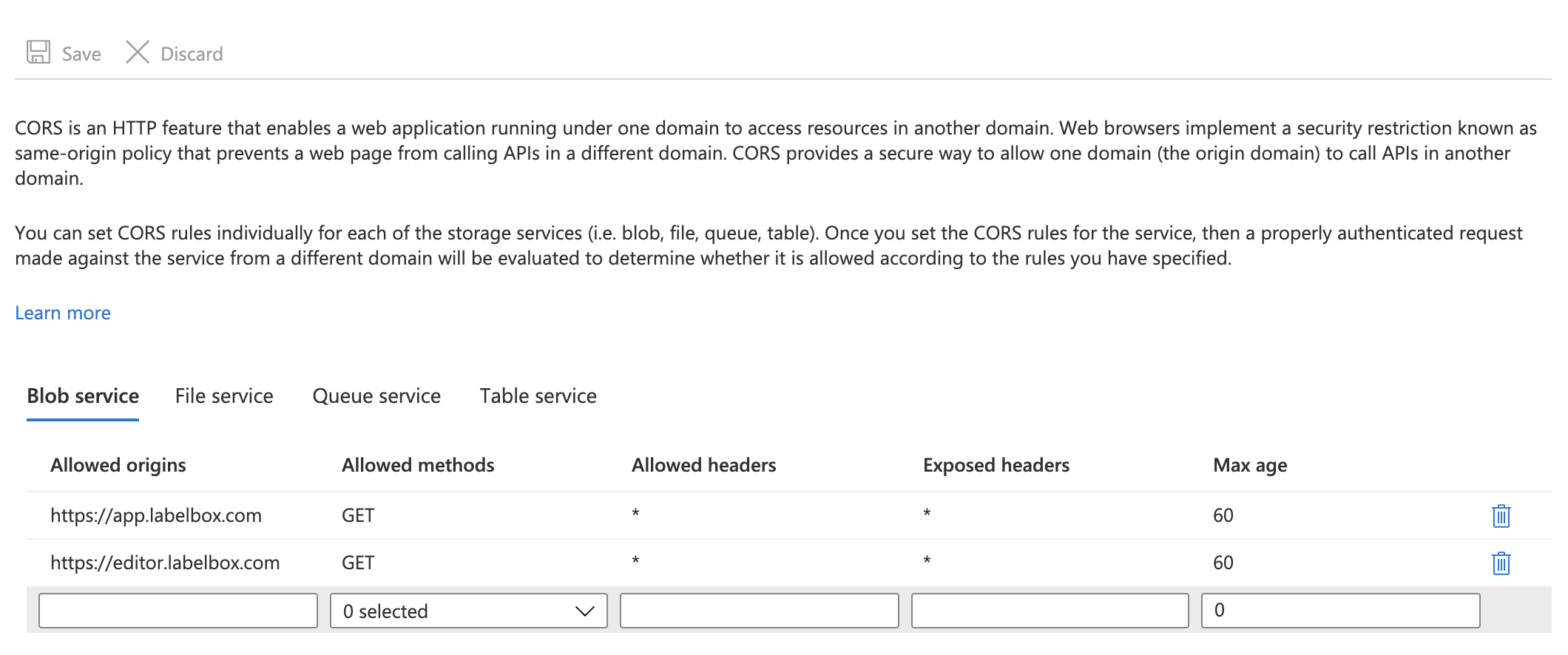
- Navigate to the your Storage Account in your Azure Portal.
- Under Settings, find Resource sharing (CORS).
- Select the Blob Service tab.
- Fill in the fields: Allowed origins (
https'//app.labelbox.comandhttps://editor.labelbox.com). Allowed methods (GET), etc. and save.