

Create a Foundry app
There are two main ways to create a Foundry app in Labelbox:- From the Model section: This is the most direct way to create a new app.
- From a model run configuration: If you’ve already configured a model run that you’d like to reuse, you can save it as an app.
Option 1: Create an app from the Model tab
- Sign in to Labelbox and select Model from the main menu.
- In the Model gallery, click the Create menu and select App.
- Choose the foundational model you want to use for your app.
- Give your app a name and an optional description, then click Proceed.
- Define the parameters for your model run. If you have a previous model run with settings you’d like to reuse, you can use the Load model run config option.
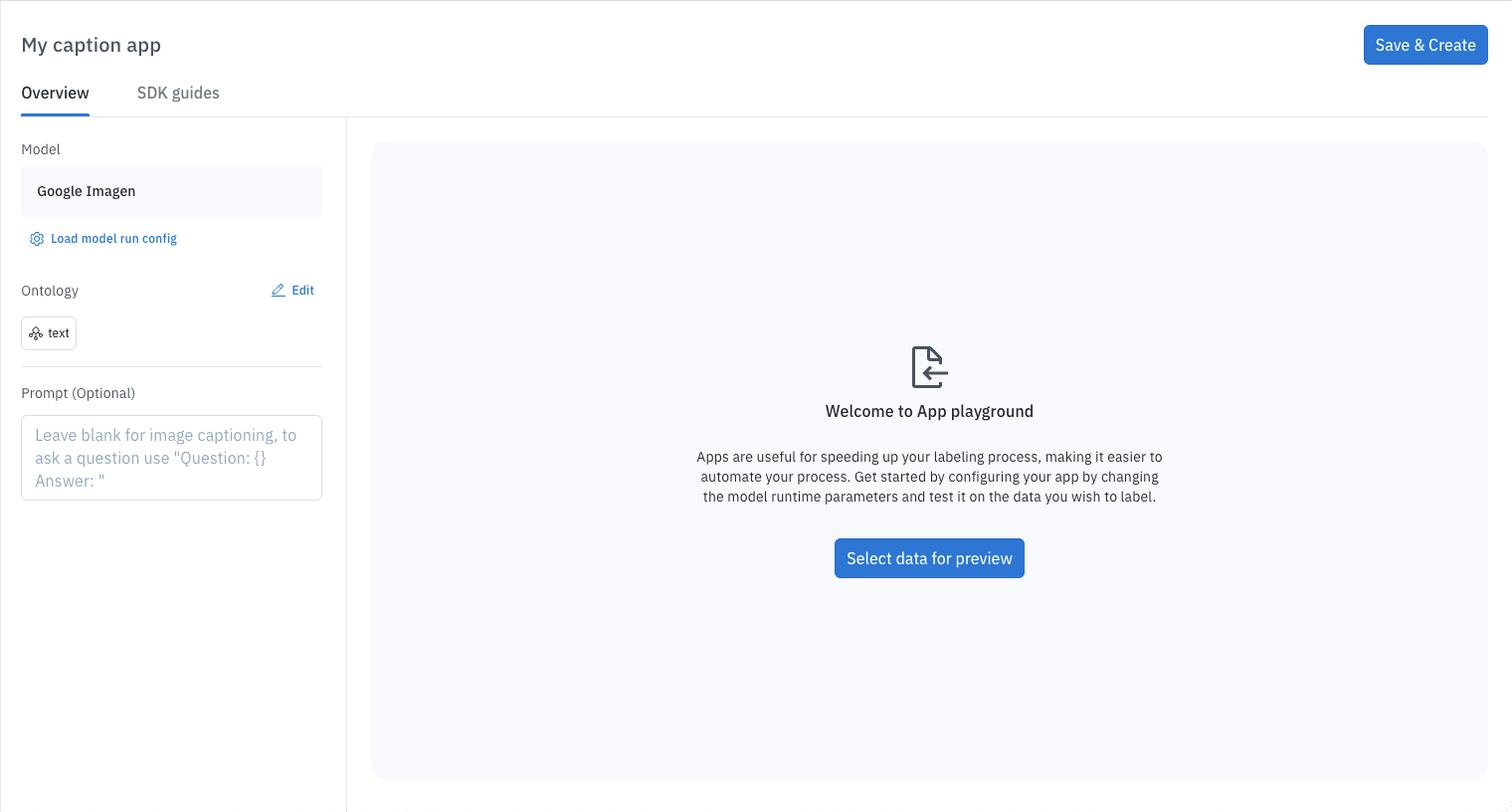
- Optionally, you can select up to ten data rows to preview how the app will work. To do this, click Select data for preview, choose your data rows, and then click Import selected.
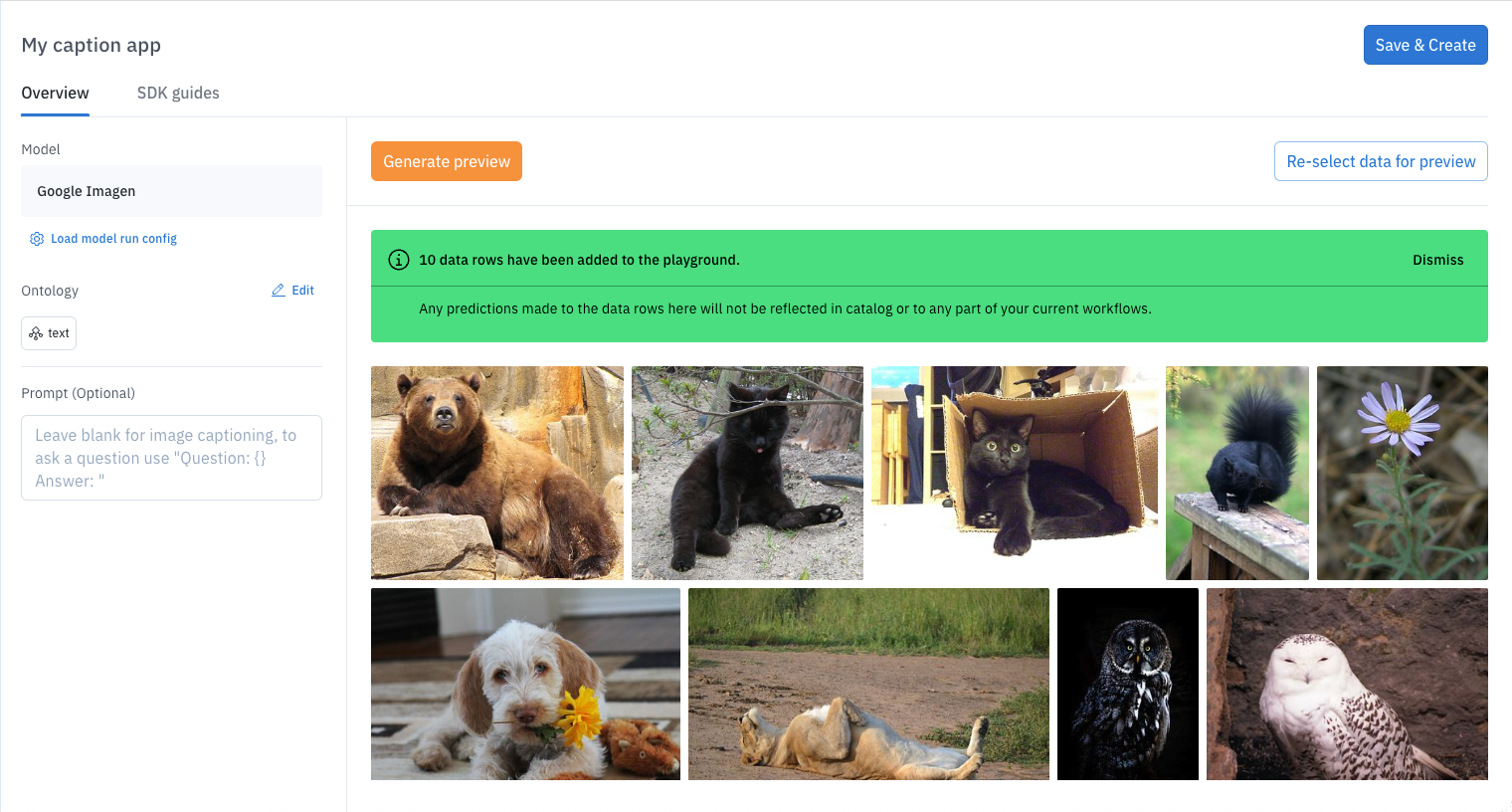
- When you’re finished, click Save & Create.
Option 2: Save a model run configuration as an app
- Start a regular Foundry model run by selecting your data rows and a model.
- Configure your model run settings as you normally would.
- Before submitting the model run, click the Save as App button, which appears near the model’s name.
- You’ll be prompted to enter a name and description for your new app.
- Click Proceed to create the app.
The Save as App button will not be displayed for models that are not compatible with Foundry apps.
Update a Foundry app
To make changes to an existing Foundry app:- Sign in to Labelbox and go to the Model section.
- Click on the Apps tab and select the app you want to update.
- Adjust the app’s settings as needed.
- When you’re done, click Save & Update.
Delete a Foundry app
If you no longer need a Foundry app, you can delete it. Please be careful, as this action cannot be undone.- Sign in to the Labelbox app and go to the Model section.
- From the Apps tab, select the app you want to delete.
- Go to the Settings tab and click the Delete app button.
- A confirmation prompt will appear. Type the word “delete” and then click Delete.