

- From the Catalog in the Labelbox app.
- Using the REST API for integration with external workflows.
- With the Python SDK for more complex, scripted workflows.
Run Foundry app from Catalog
- Go to the Catalog and select the data rows you want your Foundry app to process.
- When prompted to select a model, click on the Apps tab.
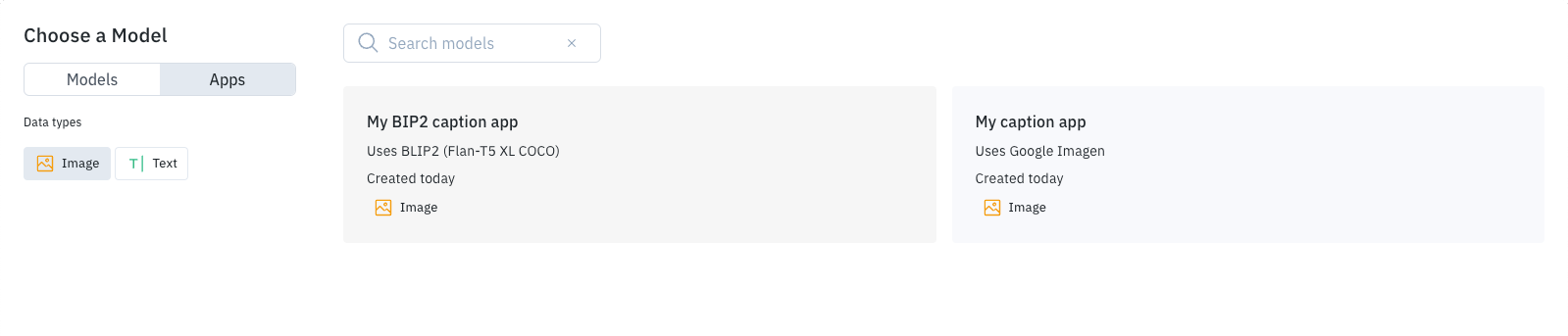
- Select your Foundry app from the list.
- From here, you can generate previews or submit the model run, just like any other Foundry model run.
Run Foundry app using REST API
You can use the REST API to run a Foundry app, which is useful for triggering predictions from external systems. You can use REST endpoints to get predictions for:- Data rows that are already in your Labelbox Catalog datasets.
- Raw data assets that are not stored in Labelbox.
- Go to the Model section and open your Foundry app.
- Select the Developers tab.
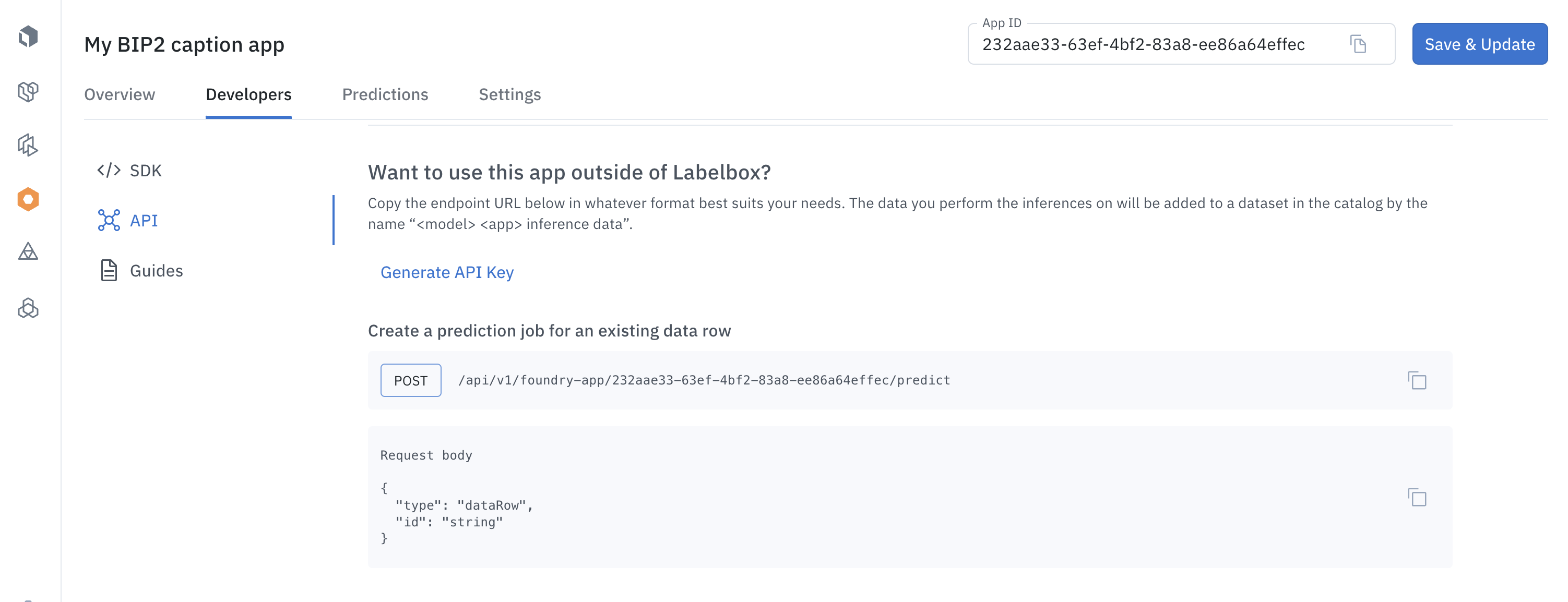
- Authentication: If you have not already generated an API key, select Generate API key and then follow the prompts. (Remember to save your API key in a safe place.)
- Choose your endpoint: Select the endpoint that corresponds to the task you want to perform. The app provides sample request bodies to help you define your REST query.
Predict an existing data row
To create a prediction job for a data row that is already in Labelbox, you’ll need to specify the data row’s ID in the request body. Note thattype is set to dataRow and that <data_row_id> specifies the appropriate value.
Example cURL request:
Predict a raw asset
You can also use Foundry apps to get predictions for raw data assets that are not stored in your Labelbox Catalog. Example cURL request:
When
createDataRow and addToModelRun are true, the data row is added to a dataset named App {Name} - inference data, and the prediction is added to a model run named App {Name} - inferences, where {Name} is the name of your Foundry app.
Example response:
id field includes the Job ID, which can be used to retrieve results when the job completes.
Get prediction results
Prediction jobs run asynchronously, so you’ll need to make a second query to get the results. This query requires theJob ID that was provided in the response to your initial request.
Example cURL request:
Find a prediction job
You can search for previous prediction jobs using the following filters:- Model App ID: The ID of your Foundry app.
- Job status:
in_progress,success,error,canceled, orretried. - Creation date: A range of dates in ISO 8601 format.
Run a Foundry app using the Python SDK
For more advanced workflows, you can use the Python SDK to run your Foundry apps and process the results. For example, you could write a script that runs an app and then sends the predictions to be annotated by a human reviewer. The Developers tab of your Foundry app in the Labelbox UI provides a sample Python script that shows how to:- Select a set of data rows.
- Run a Foundry app on those data rows.
- Retrieve the prediction results.
- Send the prediction results to be annotated.